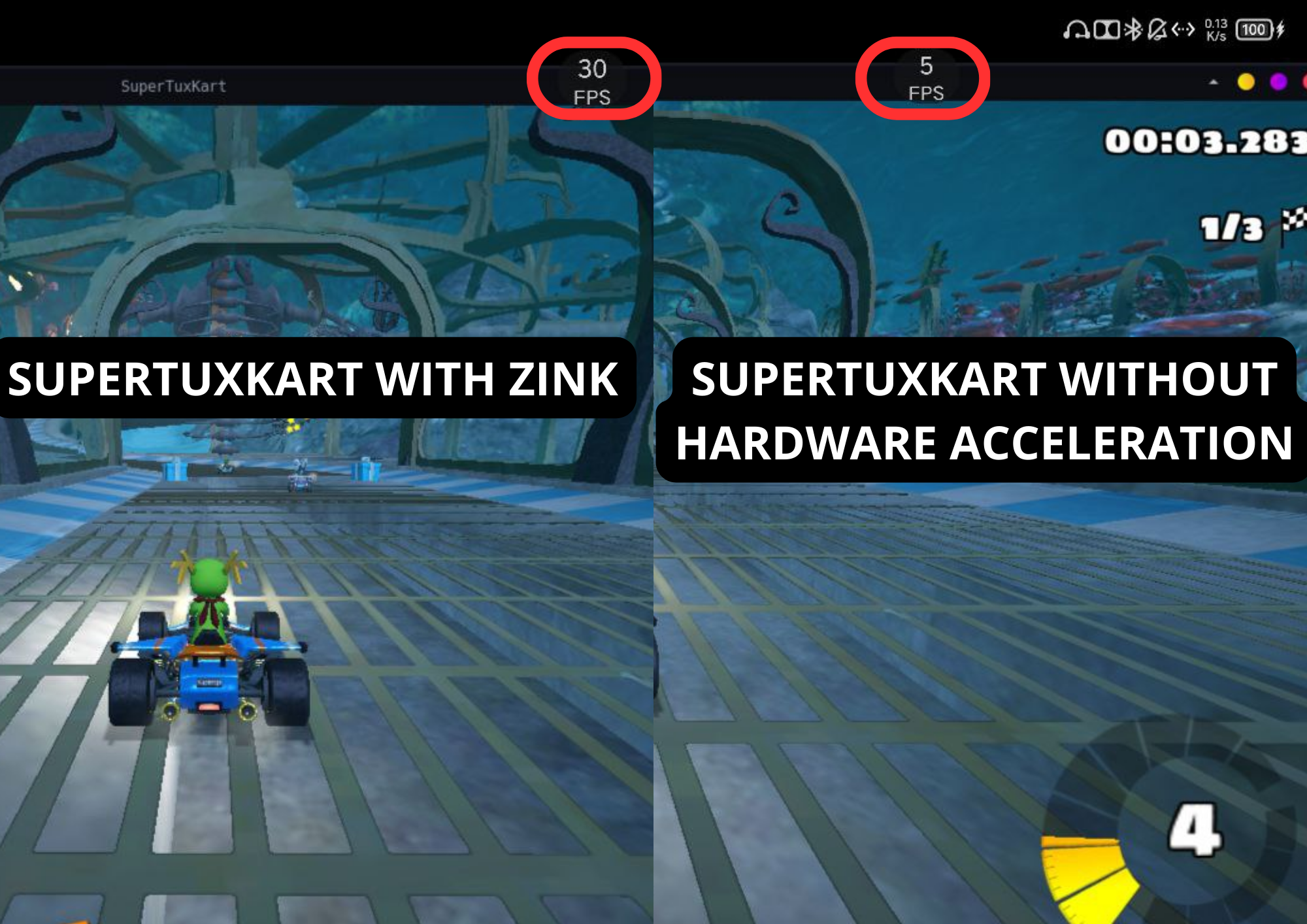
Important
One thing to note: hardware acceleration in Termux is still experimental, so it may or may not work on your device.
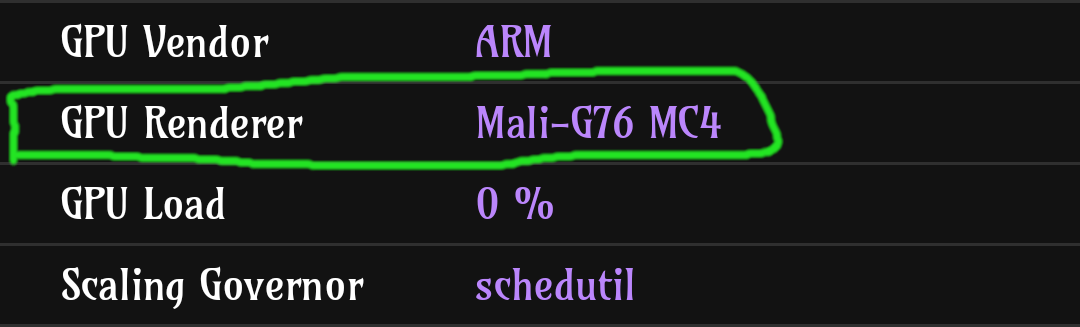
- During the Installation the script will first try to auto detect your gpu and if it failed then it will ask you to chose your device gpu
- Like in my case i can see i have a Mali GPU
- In this next step you need to chose which driver you want to use.
- In the First step you need to chose the driver You want to use for Vulkan
Vulkan is the modern and the best Api for Linux but compared to OpenGL it's new so not apps still support Vulkan But using something like Zink you can get OpenGL to work on your device but it is depend no your device
- For most of the device No.1 vulkan-wrapper-android will work
- But if you have Mali and no.1 didn't work well for you then try No.3 the pipetto-crypto's fork
- And for Adreno devices NO.4 freedreno is better Chose Also if you want freedreno to also Give you access to OpenGL then try 6.mesa-vulkan-icd-freedreno (Kgsl) But it's experimental and unmaintained
- If you opt for a distro container, select the hardware acceleration method for the distro as well.
For Adreno GPU, you don't need to choose; it will automatically use turnip
- Once selected, everything will be configured automatically.
- Start Termux Desktop via Termux:X11 (recommended) or VNC (In VNC, some drivers might not work)
- And it should just work if the selected driver supports your GPU.
Remember, you should always run pdrun from Termux's shell; never run it from inside a proot-distro.
-
Launch Termux Desktop.
-
Run programs in Termux terminal:
```bash
pdrun program
```

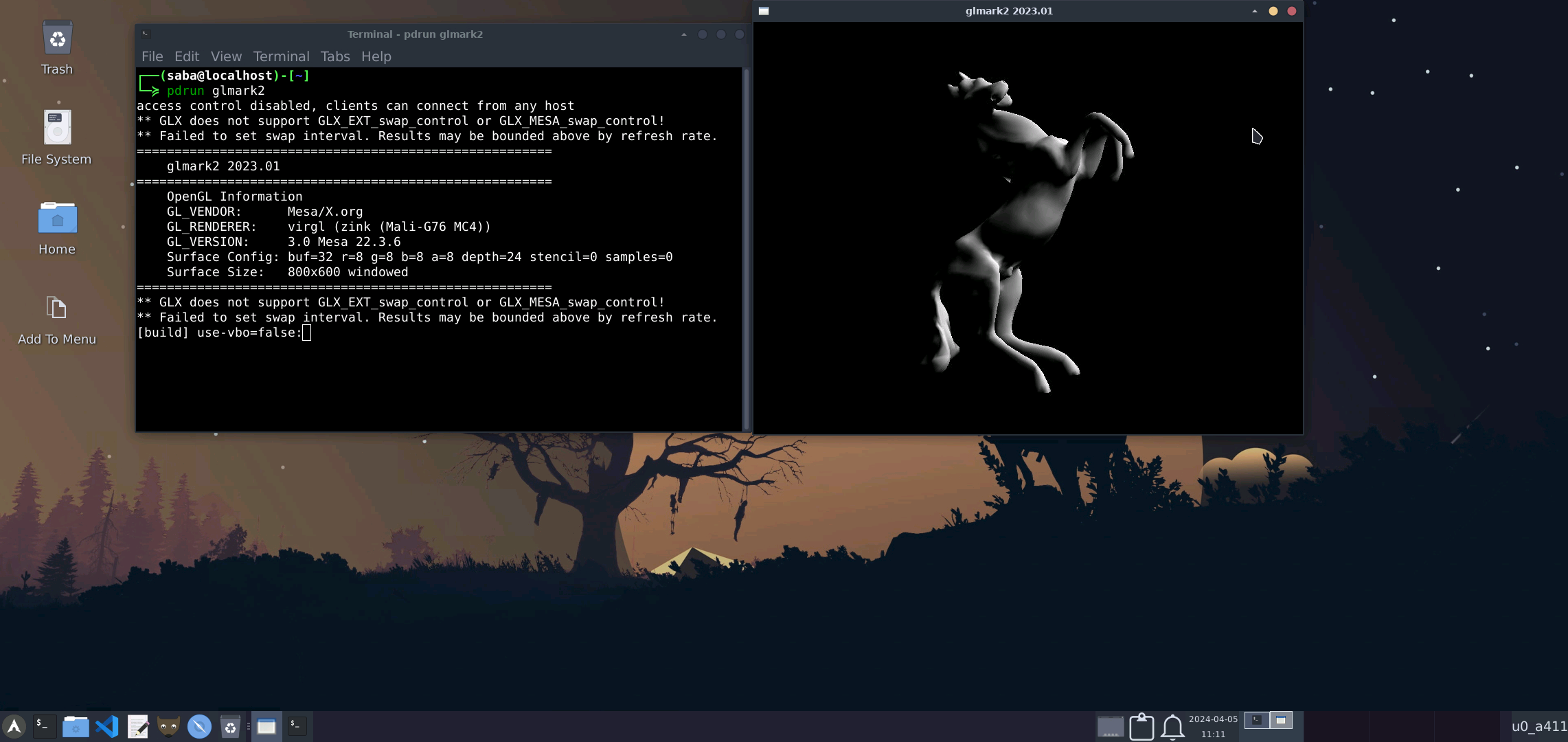
- By default pdrun runs programs with GPU acceleration.
- To run program without GPU acceleration, Use:-

```bash
pdrun --nogpu program
```
- Add the desired program to the Termux menu.
- Launch the program directly from the Termux menu.
Note
To know more on how to add a program from proot-distro to Termux, check this: HERE
-
Install required packages:
pkg install mesa virglrenderer vulkan-loader-generic angle-android virglrenderer-android -
Navigate to
$PREFIX/binand edit the following files usingnanoorvim:vncstarttx11startpdrun
-
Look for the line at the bottom of tx11start, you will find lines similar to these:
export MESA_NO_ERROR=1 MESA_GL_VERSION_OVERRIDE=4.1COMPAT MESA_GLES_VERSION_OVERRIDE=3.2 MESA_GLSL_VERSION_OVERRIDE=410 LIBGL_DRI3_DISABLE=1 EPOXY_USE_ANGLE=1 LD_LIBRARY_PATH=/data/data/com.termux/files/usr/opt/angle-android/vulkan
virgl_test_server --use-egl-surfaceless --use-gles &
sleep 1
XDG_RUNTIME_DIR=${TMPDIR} termux-x11 :0 &
sleep 1
am start --user 0 -n com.termux.x11/com.termux.x11.MainActivity > /dev/null 2>&1 &
sleep 1
env DISPLAY=:0 XDG_CONFIG_DIRS=/data/data/com.termux/files/usr/etc/xdg VK_ICD_FILENAMES=/data/data/com.termux/files/usr/share/vulkan/icd.d/wrapper_icd.aarch64.json MESA_VK_WSI_PRESENT_MODE=mailbox MESA_VK_WSI_DEBUG=blit MESA_SHADER_CACHE=512MB MESA_SHADER_CACHE_DISABLE=false vblank_mode=0 GALLIUM_DRIVER=virpipe dbus-launch --exit-with-session xfce4-session > /dev/null 2>&1 &
-
You need to change the
export,virgl_test_server --use-egl-surfaceless --use-gles &, and theGALLIUM_DRIVER=virpipevalues. -
How to get these values:
-
Here, the value under
set_to_export=replaces the word afterexportin the tx11start file -
Here, the value under
hw_method=replaces theGALLIUM_DRIVER=virpipetext -
Here, the value under
initialize_server_method=replaces thevirgl_test_server --use-egl-surfaceless --use-gles & -
Then save and exit
-
For file
pdrun: -
At the top, there will be
selected_pd_hw_method="GALLIUM_DRIVER=virpipe MESA_GL_VERSION_OVERRIDE=4.0" -
Change the
GALLIUM_DRIVER=virpipe MESA_GL_VERSION_OVERRIDE=4.0with the value underhw_method= -
Then save and exit
Run the following command to change drivers:
setup-termux-desktop --change hw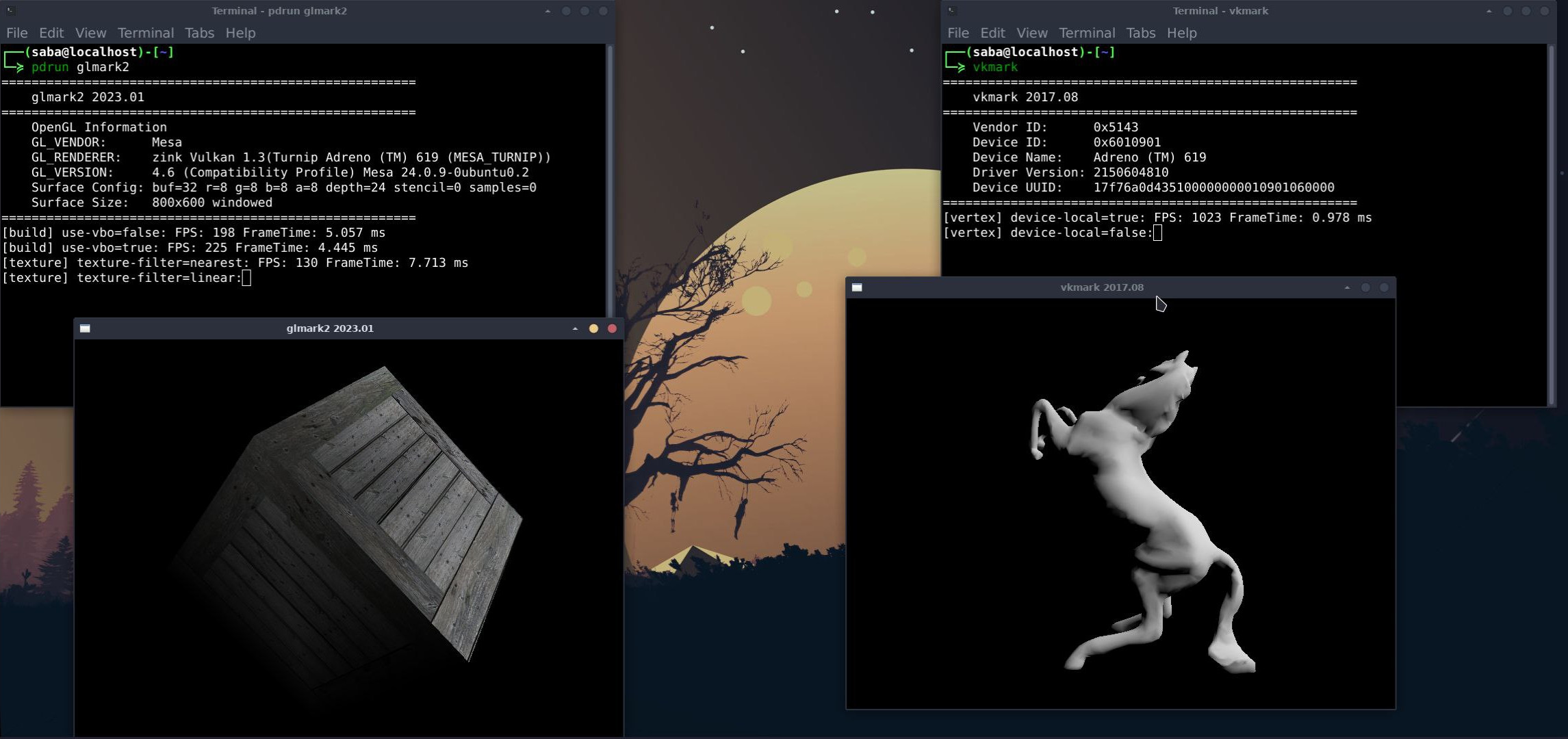
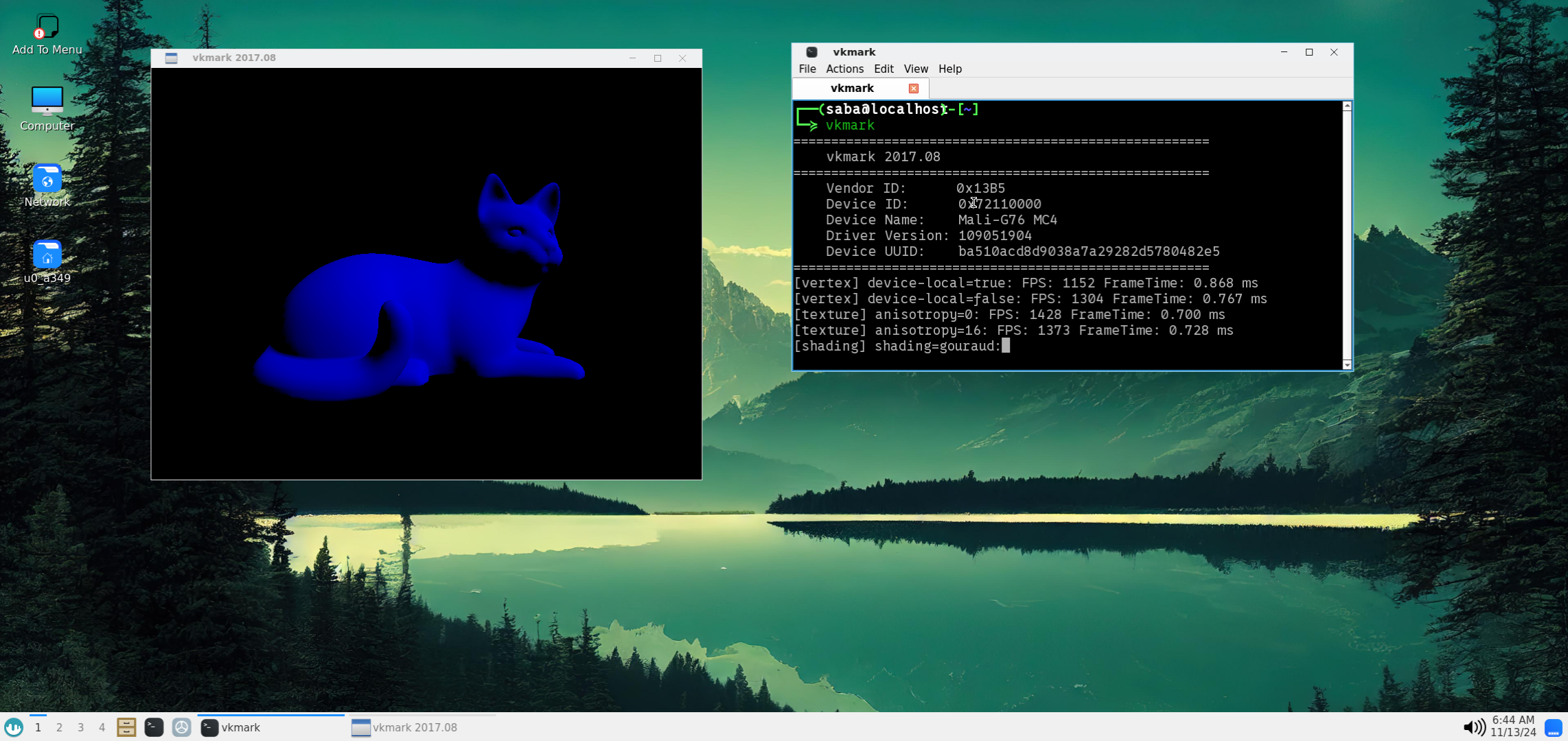
These tests and results were conducted by LinuxDroidMaster.
- Device: Lenovo Legion Y700 (Snapdragon 870, Adreno 650)
- Distro: Debian in Proot with XFCE4 Desktop
- GLMark2: Used to evaluate GPU performance.
| Run | LLVMPIPE | VIRGL | VIRGL ZINK | TURNIP | ZINK |
|---|---|---|---|---|---|
| 1 | 93 | 70 | 66 | 198 | Error |
| 2 | 93 | 77 | 66 | 198 | Error |
| 3 | 72 | 70 | 71 | 198 | Error |
| 4 | 94 | 76 | 66 | 197 | Error |
| 5 | 93 | 75 | 67 | 198 | Error |
| Driver | Command |
|---|---|
| LLVMPIPE | glmark2 |
| VIRGL | GALLIUM_DRIVER=virpipe MESA_GL_VERSION_OVERRIDE=4.0 glmark2 |
| VIRGL ZINK | GALLIUM_DRIVER=virpipe MESA_GL_VERSION_OVERRIDE=4.0 glmark2 |
| TURNIP | MESA_LOADER_DRIVER_OVERRIDE=zink TU_DEBUG=noconform glmark2 |
| ZINK | GALLIUM_DRIVER=zink MESA_GL_VERSION_OVERRIDE=4.0 glmark2 |
| Run | LLVMPIPE | VIRGL | VIRGL ZINK | ZINK | TURNIP |
|---|---|---|---|---|---|
| 1 | 69 | Error | 92 | 121 | N/A |
| 2 | 70 | Error | 92 | 122 | N/A |
| 3 | 69 | Error | 93 | 121 | N/A |
| 4 | 69 | Error | 93 | 124 | N/A |
| 5 | 69 | Error | 93 | 123 | N/A |
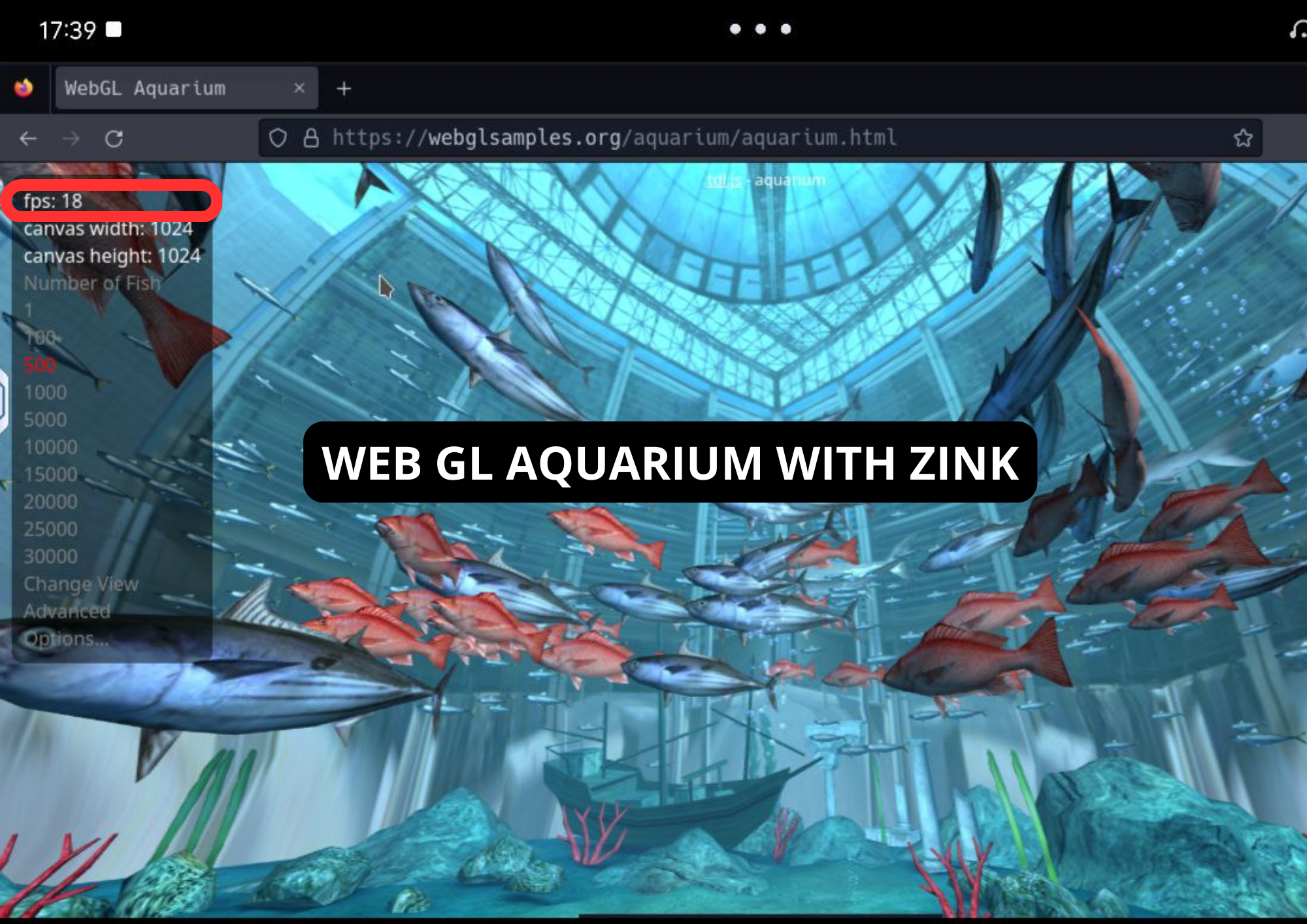
| LLVMPIPE | VIRGL | VIRGL ZINK | TURNIP |
|---|---|---|---|
| 4 | 20 | 17 | Web page crash |
| LLVMPIPE | VIRGL | VIRGL ZINK | ZINK | TURNIP |
|---|---|---|---|---|
| 2 | Error | 24 | 40 | N/A |
- SuperTuxKart: Benchmarked over 30 seconds.