Example 01
In this example we will work with:
- Sources:
- AVI files with tracks:
- Video - mpeg-4
- Audio - und
- SRT subtitles in english
- AVI files with tracks:
- Result:
- MKV file with tracks:
- Video - mpeg-4
- Audio - jpn
- Subtitle - eng
- MKV file with tracks:
Directory list:
E:\EXAMPLE\TESTMEDIA\EXAMPLE 01

+---Season 01
|       Show Title - S01E01.avi
|       Show Title - S01E01.srt
|       Show Title - S01E02.avi
|       Show Title - S01E02.srt
|       Show Title - S01E03.avi
|       Show Title - S01E03.srt
|       Show Title - S01E04.avi
|       Show Title - S01E04.srt
|       Show Title - S01E05.avi
|       Show Title - S01E05.srt
|
\---Season 01 MKV
The source files are all in the same directory Season 01 our destination directory will be Season 01 MKV.
- Start mkvtoolnix-gui and add the first AVI and SRT files.

- Identify the language for the audio and subtitles.

- Select new destination directory.
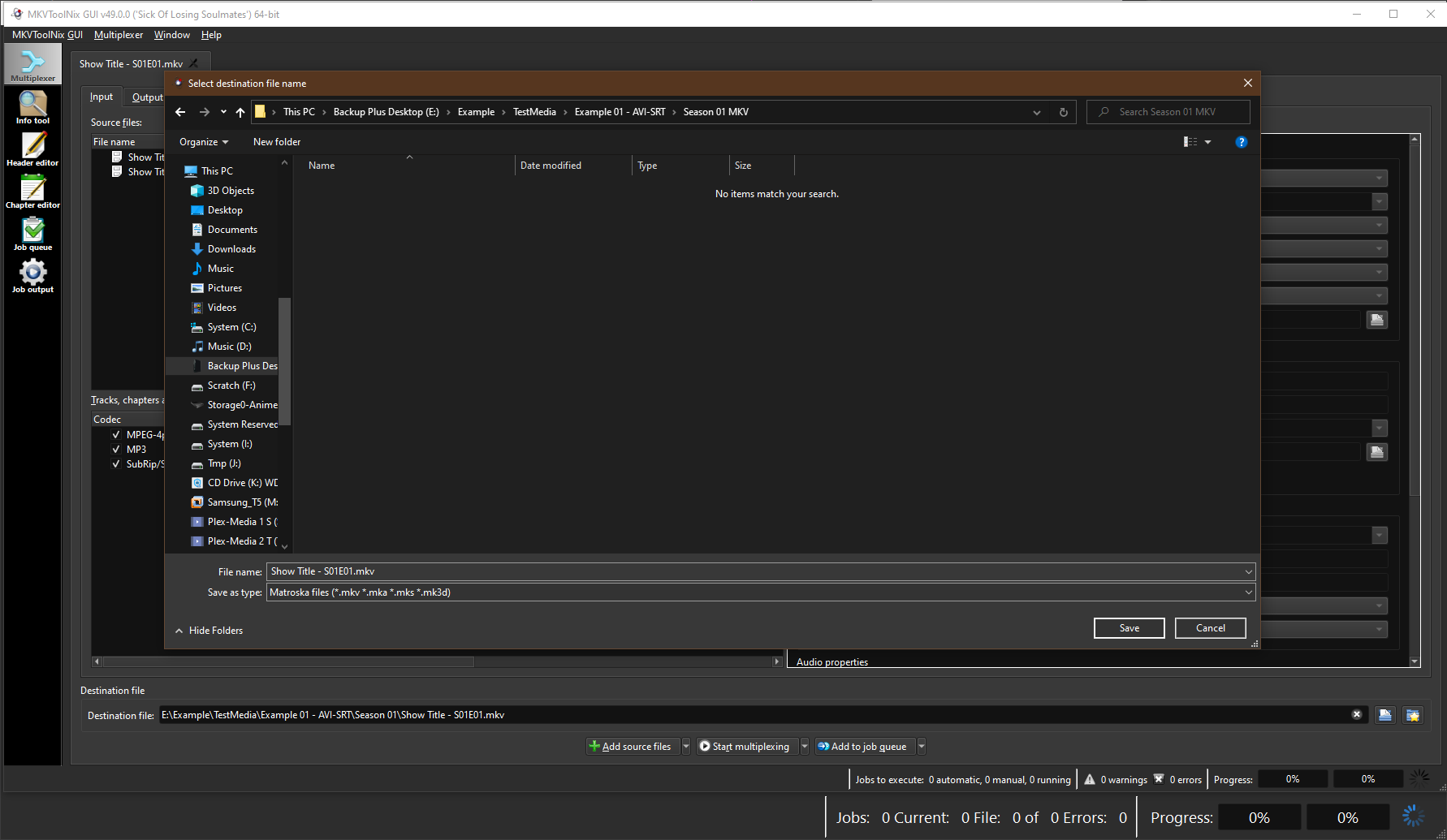
- Copy the command to the clipboard.


- Paste the command in MKVBatchMultiplex. In the message box you should see 'Command looks ok.'. This will show after the program check the command line to have the expected format.

- Add the command to the Queue pushing <Add Queue> pushbutton.
- The push <Start Worker> to execute the job on Queue. The first time the worker is started the Jobs Output tab will be activated.
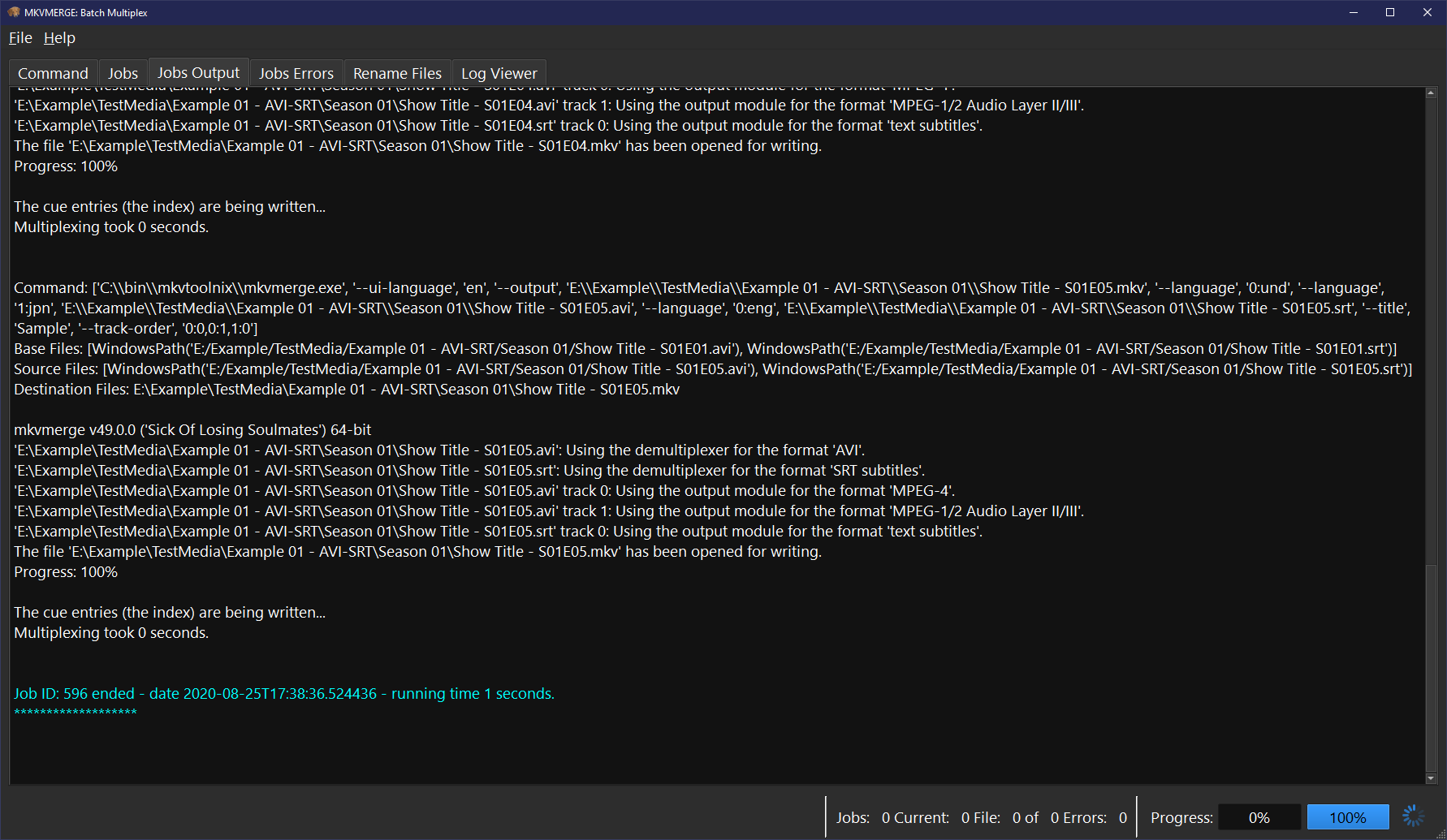
When you add the job to the Queue the job can be seen on the Jobs tab. More than one job can be added and then start the worker to execute them in sequence.
Directory listing after execution:
E:\EXAMPLE\TESTMEDIA\EXAMPLE 01 - AVI

+---Season 01
|       Show Title - S01E01.avi
|       Show Title - S01E01.mkv
|       Show Title - S01E01.srt
|       Show Title - S01E02.avi
|       Show Title - S01E02.mkv
|       Show Title - S01E02.srt
|       Show Title - S01E03.avi
|       Show Title - S01E03.mkv
|       Show Title - S01E03.srt
|       Show Title - S01E04.avi
|       Show Title - S01E04.mkv
|       Show Title - S01E04.srt
|       Show Title - S01E05.avi
|       Show Title - S01E05.mkv
|       Show Title - S01E05.srt
|
\---Season 01 MKV
        Show Title - S01E01.mkv
        Show Title - S01E02.mkv
        Show Title - S01E03.mkv
        Show Title - S01E04.mkv
        Show Title - S01E05.mkv
Here we see in the directory listing that the new MKV files are in the destination directory.
I executed two jobs the of the command using the default destination directory and one with a different destination directory.
Directory listing after execution:
E:\EXAMPLE\TESTMEDIA\EXAMPLE 01

+---Season 01
|       new-Show Title - S01E01.mkv
|       new-Show Title - S01E02.mkv
|       new-Show Title - S01E03.mkv
|       new-Show Title - S01E04.mkv
|       new-Show Title - S01E05.mkv
|       Show Title - S01E01.avi
|       Show Title - S01E01.mkv
|       Show Title - S01E01.srt
|       Show Title - S01E02.avi
|       Show Title - S01E02.mkv
|       Show Title - S01E02.srt
|       Show Title - S01E03.avi
|       Show Title - S01E03.mkv
|       Show Title - S01E03.srt
|       Show Title - S01E04.avi
|       Show Title - S01E04.mkv
|       Show Title - S01E04.srt
|       Show Title - S01E05.avi
|       Show Title - S01E05.mkv
|       Show Title - S01E05.srt
|
\---Season 01 MKV
        Show Title - S01E01.mkv
        Show Title - S01E02.mkv
        Show Title - S01E03.mkv
        Show Title - S01E04.mkv
        Show Title - S01E05.mkv
We see that in the new destination we have the new MKV files. In the source we see duplicate number of MKV files. Executing the first command without removing the result of the previous run will cause a name collision that is solved with a prefix. If a file with a prefix is found the program will serialize the prefix adding numbers new1, new2, ... newN. The sources are never erased nor the destination file overwritten.